Do you have Multiple Google Accounts?
The other day I was reminded that having multiple Google accounts really can affect your online branding efforts. Do you have more than one Google account, or old accounts that you don’t need any more? You may not be aware that it can cause confusion and at worst, create bad branding. 
Users may be confused when they see multiple Google accounts for the same person. Which account should they be using? Make it easy on people so they don’t have to guess. They could be potential clients! Evaluate which accounts you really need.
Here are some locations where multiple accounts may appear within Google:
1. Google Search results
2. Google Mail (Gmail)
3. Google Contacts
My advice is to delete old accounts, and merge existing ones if that makes sense for you.
Google takes measures to delete inactive accounts, which brings me to another point. Make sure that you create a Google Mail account in your name or business name so that no one else can own it. If you have a common name this is especially difficult, but you should try and be consistent with your naming across all platforms so that you won’t be confused with someone else.
How to Delete a Google Account
Log into the Google Account you want to delete and click on Data & privacy in the left navigation. Under More options at the bottom of the page you will see Delete your Google Account.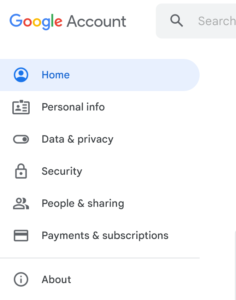 You will need to log in again. All Google apps related to your account will be deleted like Calendar, Contacts, Drive contents, Alerts and your YouTube Channel, so be sure this is what you want to do. (You will be given an option to link your Ads account to another account.)
When you click on the Close link, it will take you to another screen asking for verification before your account is deleted.
Spring is a good time to do some online clean-up. You’ll be glad you did! It pays to keep your Google house in order and to maintain your Google accounts.
Never miss a blog–subscribe to our email newsletter here.
Another Small Business Internet Marketing Blog by Tina Reed Johnson
Blog updated: 12/30/22